
On first inspection the shapes of
the built in line markers appear to be very limited.
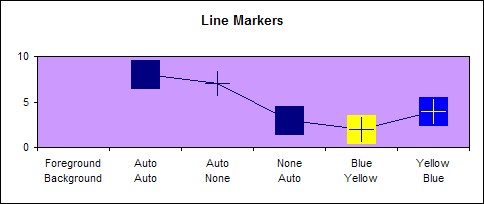
But by adjusting the foreground and background colours you can
reveal some extra markers.
The following screen
shots are taken from the Patterns tab of the Format Data
Series dialog.
To display it just double click your data series.
Foreground and
Background set to Automatic colour
Foreground Automatic and Background No Color
This combination
reveals a selection of crosses.
Foreground No Color and Background Automatic
This combination
reduces the size of some markers to the extent that the
line ones are lost.
Foreground and Background Coloured.
Using 2 different
colours allows the crosses to appear with a coloured
background
This explains how to get the
most from the built-in markers. But it is possible to use your
own shapes and pictures as custom markers. Until I create a more
detailed page here is a quick explanation.
In order to use an Autoshape as a custom marker simply select
the autoshape and press CTRL+C to copy it to the clipboard.
Select the markers of the series in your chart and press CTRL+V
to paste the shape.